← All guides
Team members and seats
Invite colleagues into the workspace, hand out temporary passwords and manage seats.
Invite by email
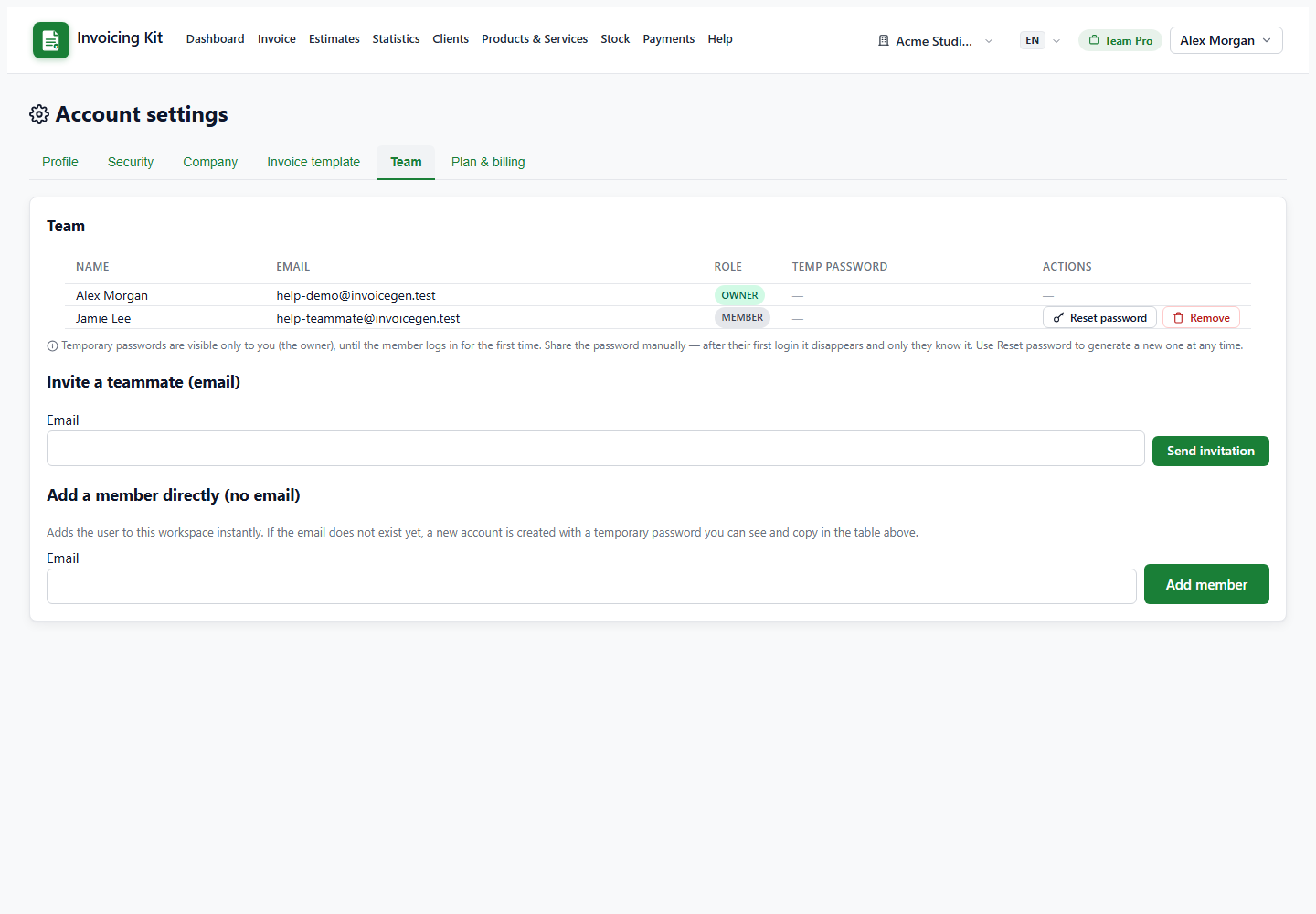
Open Settings → Team and enter a colleague's email under Invite a teammate. The app sends an invitation link that is valid for about seven days. When the person accepts it, they join the workspace with the member role and can work on the same clients, documents and settings.
Invitations are only available while seats remain on the plan; the form is disabled and the page suggests an upgrade when the limit is reached.
Add a member directly (no email)
Use Add a member directly when you want to create access immediately. If the email is new, the app creates the user and a temporary password, which appears in the Team table:
- The temporary password is visible only to the owner, until the member logs in for the first time.
- Use Copy to share it through your own channel.
- Reset password generates a new temporary password at any time.
- If the email already belongs to a user, they are added to the workspace without a new password.
Seats, roles and removal
- Owner — full access, including team management, billing and company settings.
- Member — works with the workspace data; cannot manage team, billing or company deletion.
- Seats are limited by the plan. Upgrading raises the limit immediately.
- Removing a member revokes their workspace access but keeps their user account. They can be invited again later.
- The last owner cannot be removed.