Online payments with Stripe
Let clients pay invoices by card, straight into your own Stripe account (Business / Team Pro).
Who can use it and how to connect
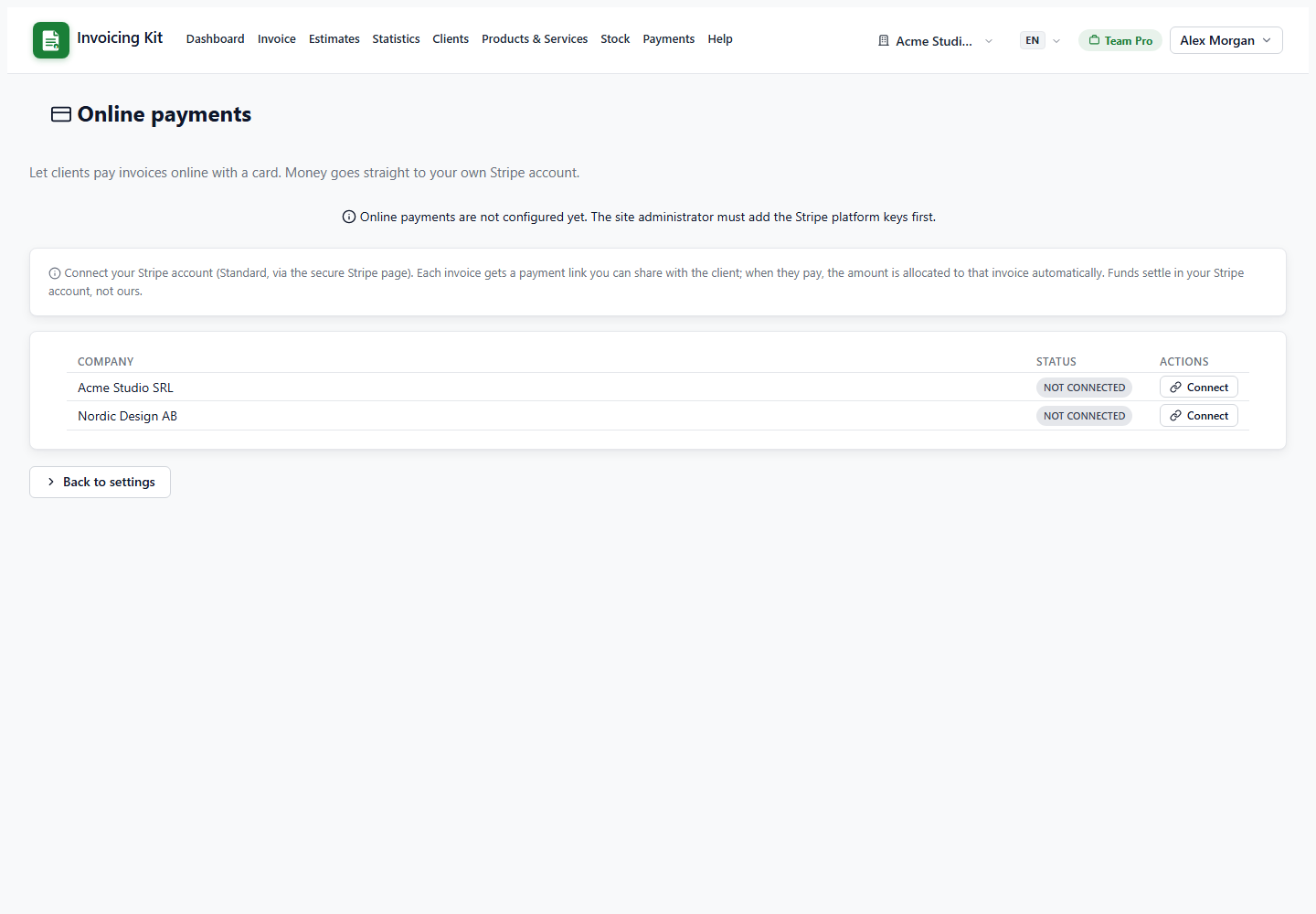
Online payments are available on Business and Team Pro. The platform administrator configures the Stripe keys; each company then connects its own Stripe account.
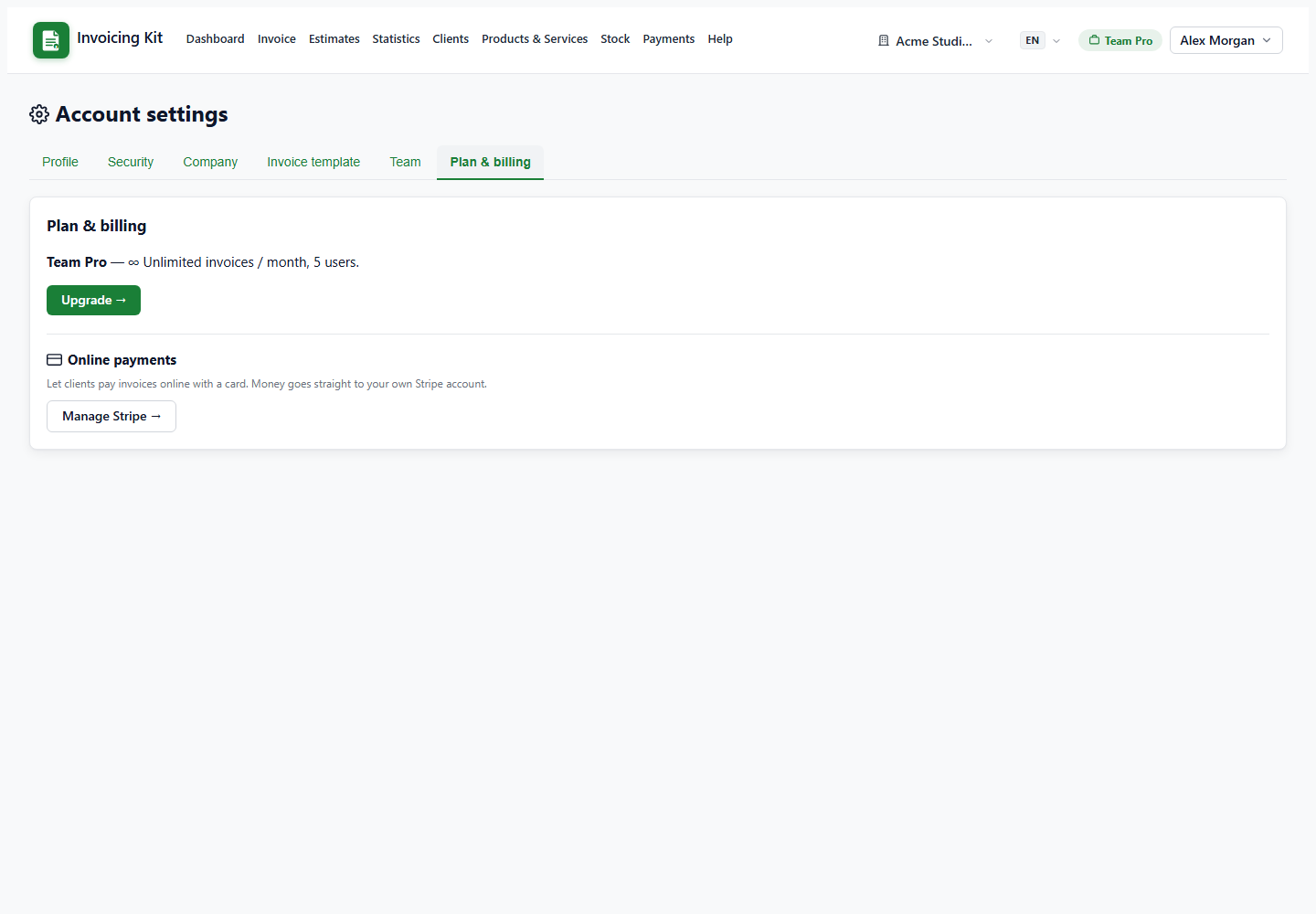
- Open Settings → Plan & billing → Online payments → Manage Stripe.
- For each company, choose Connect with Stripe and complete the Stripe onboarding (Standard account).
- When Stripe reports the account as ready, the status becomes Connected.
Money is charged directly in the connected company's Stripe account; the application only creates the checkout and records the payment. It never holds the funds.
Create and share a pay link
On a Sent or Overdue invoice with a balance, click Pay link. The app opens a modal with a public payment URL for that invoice (the invoice gets a private token). Share it with your client.
- The public page shows the issuer, invoice number, totals and the amount due.
- The client pays by card through Stripe Checkout.
- The charge equals the current balance, not the original total, so partially paid invoices only ask for the remainder.
- The page is marked
noindexand does not require the client to log in.
What happens after the payment
Stripe sends a webhook to the app. The handler verifies the signature, checks that the event belongs to the connected company, then:
- creates a payment received of type online (created by the workspace owner),
- allocates the paid amount to the invoice,
- flips the invoice to Paid when the balance reaches zero (including overdue invoices).
The success page only displays the invoice state; the webhook is the source of truth. If the invoice still shows as unpaid, wait a few seconds and refresh — failed events are retried by Stripe. A payment that cannot be matched is not applied, so the money is never silently lost.