Creating and sending invoices
From a blank editor to a paid invoice: line items, statuses, PDF and email delivery.
Create an invoice
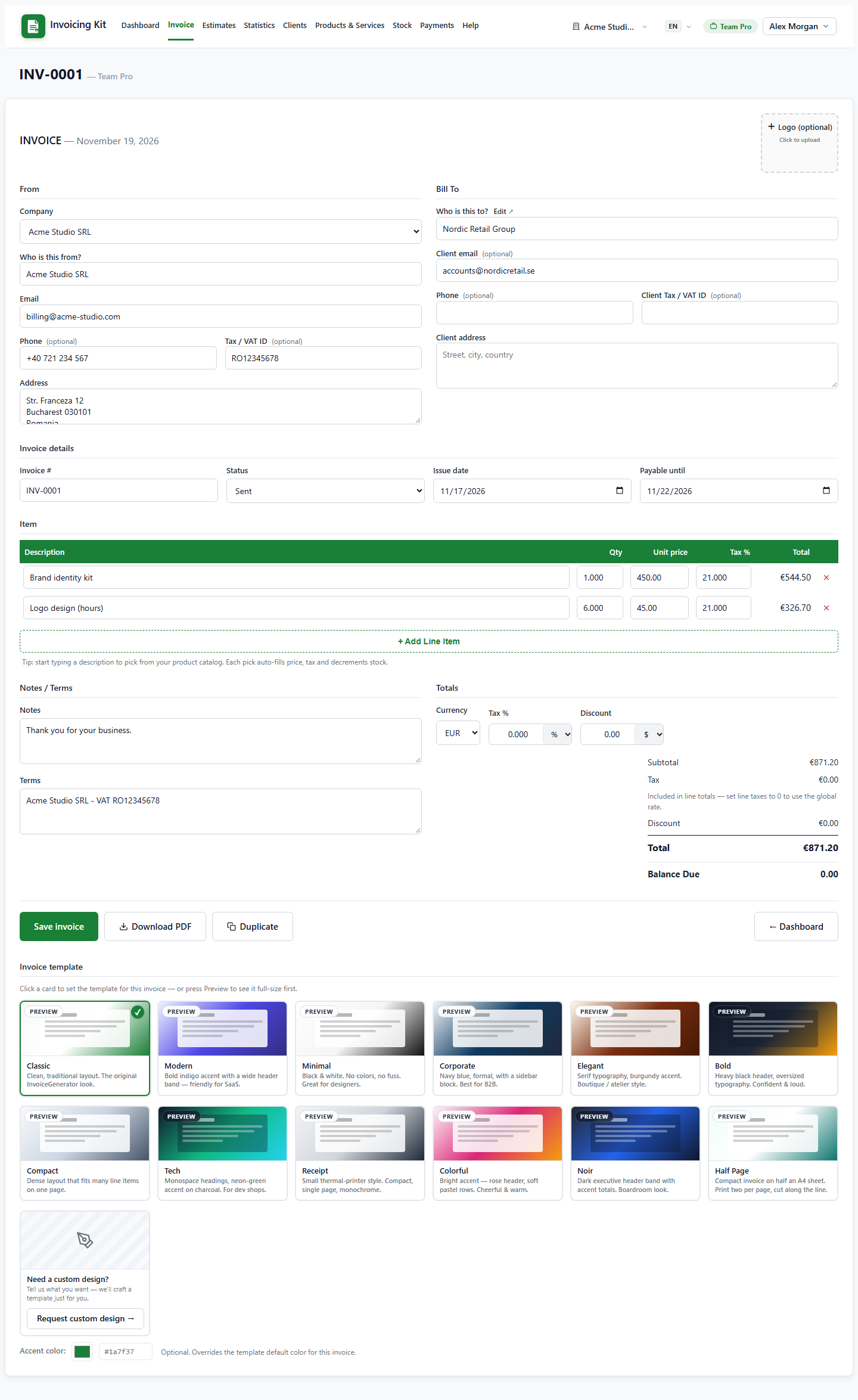
Choose New invoice from the dashboard or the navbar. Fill in the company (which controls the header and numbering), the client, the issue date and the due date, then add line items:
- Type a description to pick a catalog product or service, or type free text.
- Set quantity, unit price and tax rate per line. Totals update immediately.
- Use + Add Line Item for more rows; remove a row with the × button.
- Tax can be a percentage or a fixed amount; discount can be a percentage or a fixed amount.
- Add notes and terms — they appear on the PDF.
A new invoice starts as a draft and can be saved without a client. To issue it, change the status to Sent; a client is required at that point.
Statuses and what changes them
- Draft — editable, not yet issued, does not require a client.
- Sent — issued. You can email it, download the PDF and share it. The company and client data are frozen as a snapshot.
- Paid — set automatically when the allocated payments cover the total. You cannot set it manually.
- Overdue — set automatically when the due date has passed and the invoice is not fully paid.
- Cancelled — manual terminal state; excluded from totals and reminders.
The editor only offers Draft and Sent; Paid and Overdue are derived from money and dates, and Cancelled is managed from the dashboard. This keeps the accounting state consistent.
Send, preview and download
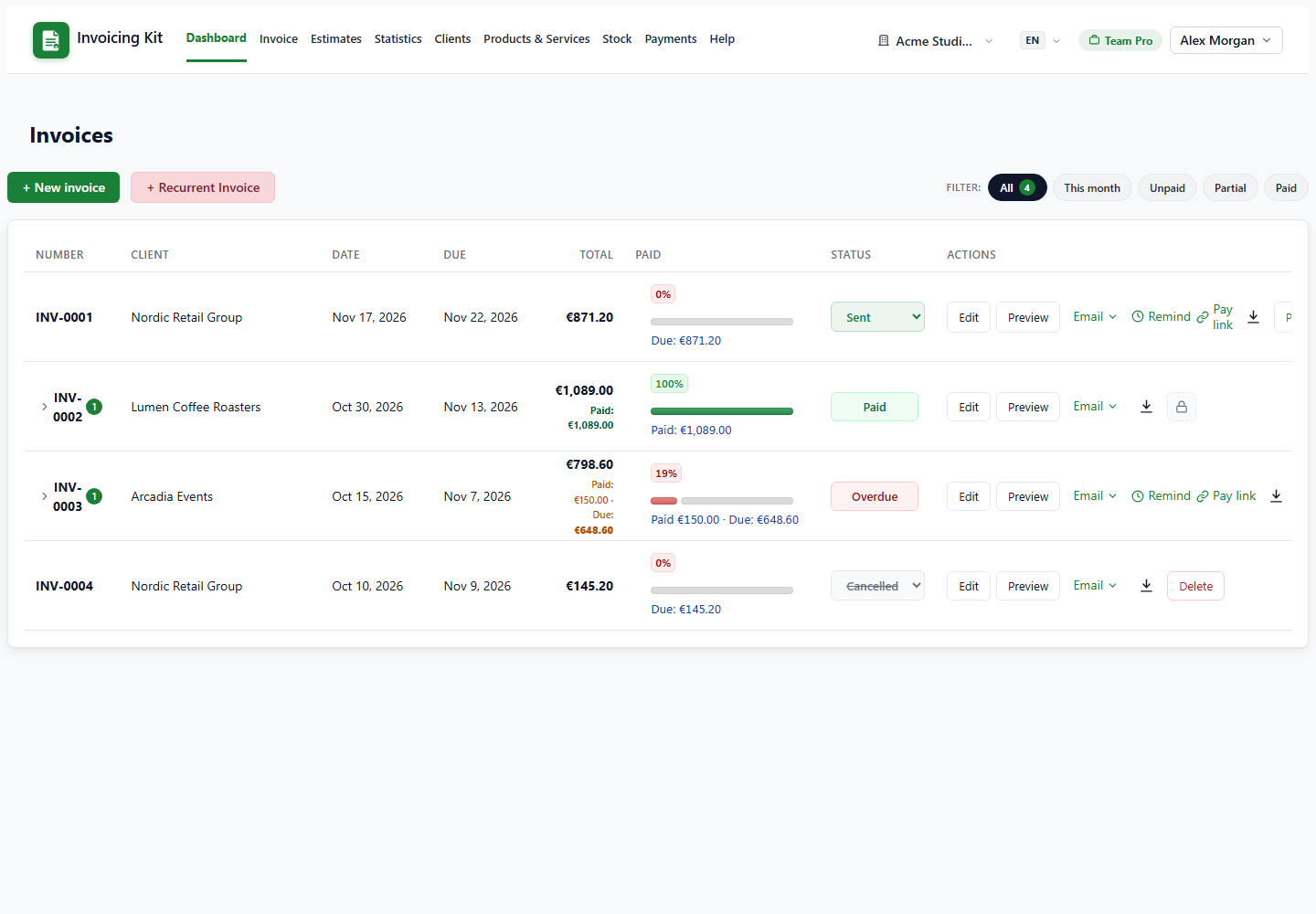
Row actions on the dashboard cover the delivery flow:
- Preview — opens the PDF preview using the invoice template.
- Download — PDF or CSV (line items plus totals; CSV opens cleanly in Excel).
- Email — send from the app (PDF attached via your SMTP) or open your own mail client (mailto). If the invoice is a draft, the app asks for confirmation and switches it to Sent when you send the email.
- Remind — sends a payment reminder (paid plans; see the reminders guide).
An invoice that has payments allocated cannot be deleted. Delete the payment first if you really need to remove the invoice.